

A Month in Monarch: 10 Minutes a Week, One Sit-Down a Month
Most budgets don’t fail at setup. They fail in week three, when a pile of transactions is sitting there and nobody wants to deal with it.
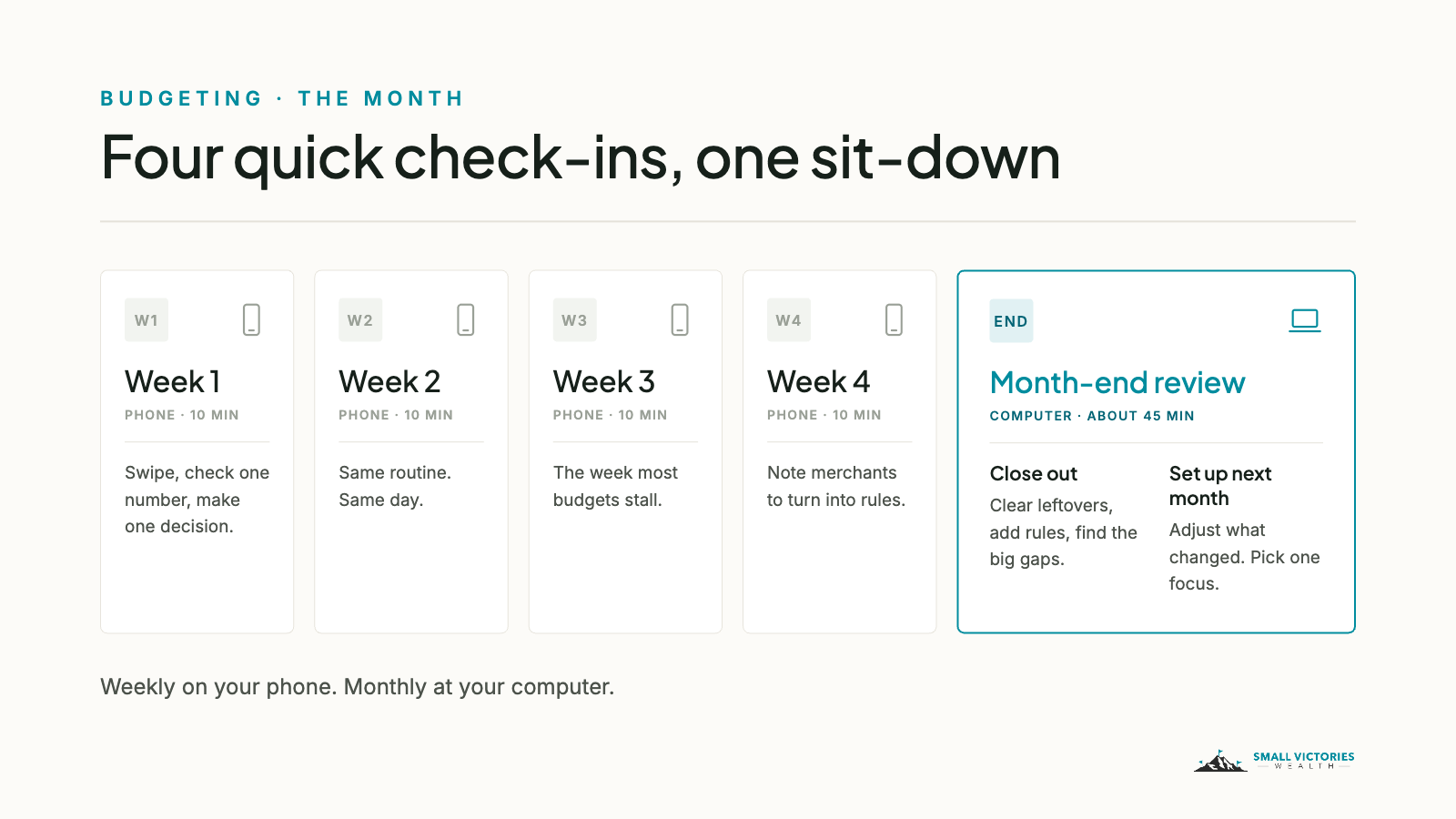
The fix is a small routine you can actually keep. In a typical month, that means four quick check-ins on your phone and one longer sit-down at your computer when the month ends. Here’s what each one looks like, step by step.
Use your phone and your computer for different jobs
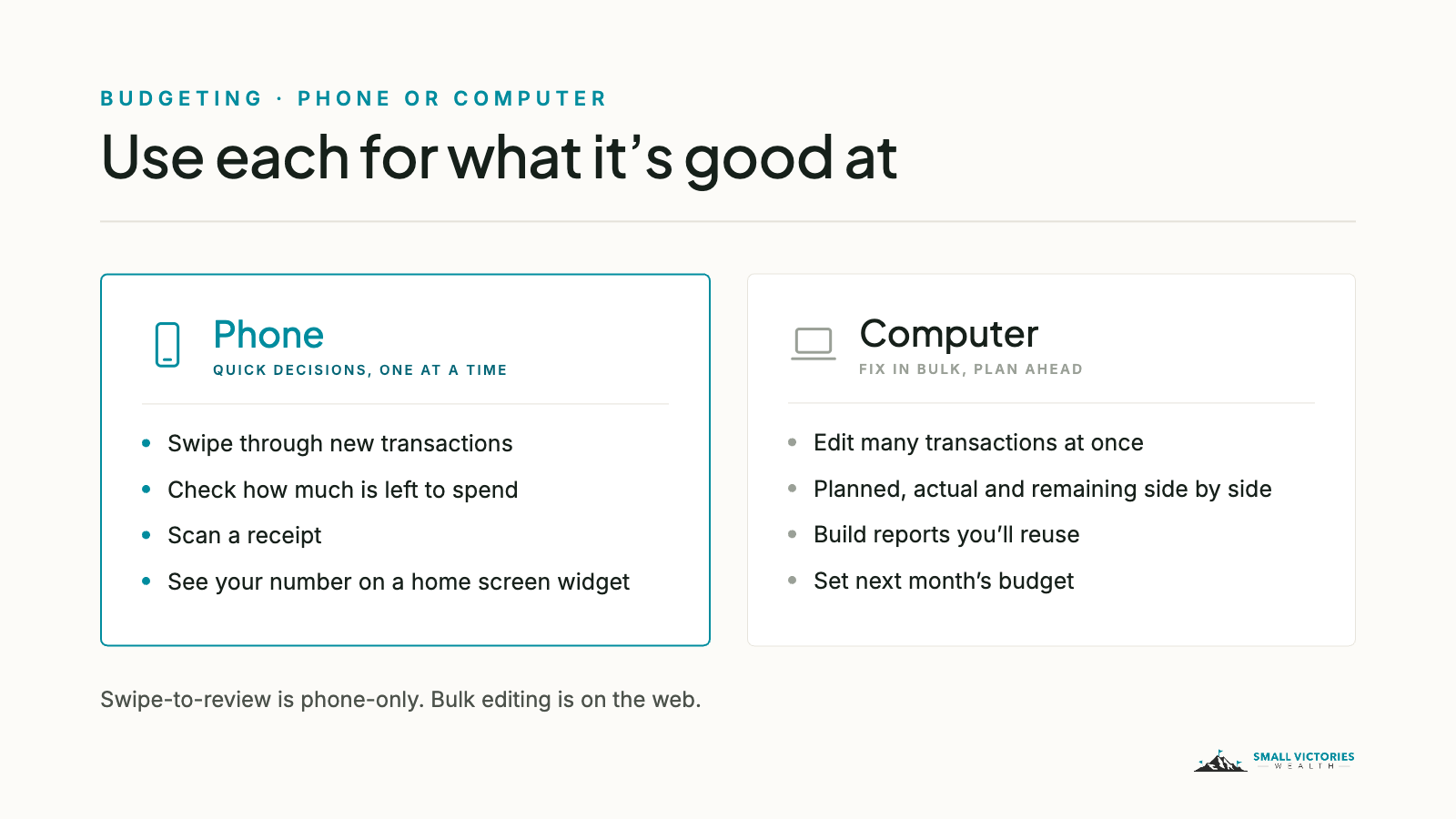
Monarch works on both, but each is better at something. The phone is built for quick decisions, one transaction at a time. The computer is where you fix things in bulk and plan ahead.
On your phone: swipe through new transactions, check how much you have left to spend, scan a receipt, and glance at a home screen widget.
On your computer: fix many transactions at once, see planned, actual, and remaining side by side, save the reports you’ll reuse, and set next month’s budget.
A few details worth knowing:
Swipe to review is phone-only. When there’s something to review, an orange “Let’s review some transactions” banner shows up at the top of the dashboard. Swipe right to mark a transaction reviewed, or left to skip it for now.
Bulk editing is on the web. On the Transactions page, “Edit Multiple” lets you check off a dozen transactions and fix them in one step.
The budget looks a little different on each. The web shows three columns: Planned, Actual, and Remaining. The phone shows Planned and Remaining. Tap the column header to switch to Actual.
Reports now work on your phone, but saved reports are created on the web. Build one once on your computer, and it’s there in the app from then on.
The weekly review: under 10 minutes, on your phone
Pick one day and keep it. Sunday morning with coffee works. So does Friday at lunch. Put it on your calendar the way you would a meeting.
Open the review banner. Monarch collects everything new since your last review in one place.
Swipe through the list. If the category is right, swipe right. If it’s wrong, tap to change it, then swipe. If you need to ask your partner about a charge, swipe left and come back to it.
Tag only what you’ll want to find later. A dinner on a trip gets a Trip: tag. A work expense you’ll be paid back for gets Reimb:. Most transactions need no tag at all. (More on tags here.)
Check one number. If you use flex budgeting, that’s how much flex is left for the month. If you budget by category, look at the two or three categories you’re watching.
Make one decision. On track? You’re done. Running ahead? Pick where to ease off this week: fewer takeout nights, say, or holding off on a purchase until next month.
If the weekly review takes more than 10 minutes, the setup is the problem, not you. Usually it means the same merchants keep landing in the wrong category. Jot them down and turn them into rules at the end of the month.
For couples: one person can do the weekly swipe-through. On the web, a transaction’s “Needs review by” field can assign a charge to the other person when only they know what it was.
The end-of-month review: about 45 minutes, at your computer (H2)
Do this in the first few days of the new month, once the last charges have posted. It has two halves: close out the month you just finished, then set up the one ahead.
Close out last month
Clear anything left over. On the Transactions page, filter to transactions that still need review. Use Edit Multiple to fix groups of them at once.
Check your connections. An account that stopped syncing will quietly make the whole month look wrong. Reconnect anything that shows an error.
Turn repeat fixes into rules. Anything you corrected by hand two or three times this month should become a rule, so next month it’s categorized automatically.
Look at the month. On the Budget page, find the two or three biggest gaps between planned and actual. For each one, ask: was this a one-off, or is it the new normal?
Check your cash flow. The Cash Flow report shows income, spending, and your savings rate for the month. Save it once and it’s a single tap every month after.
Check your set-asides. Categories with rollover turned on (a small circular arrow next to the remaining amount) should be building up toward the bills they’re for, like holiday gifts or an annual insurance premium. Unspent money carries forward, and so does overspending.
Set up next month
Look at your calendar first. Birthdays, a trip, back-to-school, an annual subscription renewal. Anything unusual coming up is easier to plan for now than to explain later.
Adjust only what changed. If a gap was a one-off, leave the budget alone. If it’s the new normal, like a rent increase or a new daycare rate, change the amount going forward.
Don’t reset the whole budget. Monarch’s “Recalculate default budgets” rebuilds every amount from the last six months of spending and overwrites what you’ve set. Save it for a big life change, like a move or a new baby.
If you use flex budgeting, re-check your flex number: take-home pay, minus your fixed bills and savings, minus what you set aside for non-monthly costs. If any of those moved, the flex number moves too.
If you budget by category or group, compare the month to your targets. In our Needs / Wants / Future model, that’s a quick look at three numbers.
Pick one focus for the month. Just one: less takeout, a bigger transfer to savings, or canceling two subscriptions you forgot about.
For couples: do the close-out alone, then spend ten minutes together on the summary, not the transaction list. The point is to agree on the one focus for next month.
When you fall behind
It happens to everyone. Two missed weeks turns into 200 transactions, and the app starts to feel like a chore.
Don’t clear the pile one transaction at a time. On your computer, filter the Transactions page to one of your most common stores, select everything with Edit Multiple, and categorize the whole group at once. Repeat for your top few merchants. That usually takes care of most of the pile in a few minutes. Then set up rules for those merchants so the pile doesn’t come back.
Where to start
Put two recurring reminders on your calendar: a weekly one for the phone review, and a monthly one for the first weekend of each month. Then add Monarch’s budget widget to your phone’s home screen, so you see your number without opening the app.
That’s the whole routine. Ten minutes a week, one sit-down a month, and a budget that still works in March.
If you’d like someone to do that monthly sit-down with you, that’s what our quarterly Budget Support is for. Book a short intro call.
On Monarch: Monarch is a budgeting app we use with clients to connect accounts and track spending. Small Victories Wealth receives no compensation from Monarch — no referral fees, no affiliate arrangement, no revenue share. Clients in our ongoing planning services get Monarch access as part of their fee; for our budget packages and Budget Support, you keep your own Monarch subscription. It's one tool among several, and it may not be the right fit for every situation.
